
1. Course Tooling#
1.1. Editing Tools#
For most programming languages, including Python, there are many tools you can use to write, run, and debug programs. Some of the code-editing development tools are full-featured integrated development environments (IDEs), some are lightweight code editors, while others are specialized development environment such as Jupyter and Google Colab.
Full IDEs like PyCharm, IntelliJ, and Visual Studio are comprehensive environments designed for full-scale software development: building complete applications, managing large codebases, and collaborative development. They’re the standard choice for professional software engineering where you need structure, performance, and the ability to handle complex projects. Full IDEs have comprehensive tooling: debuggers, refactoring, testing frameworks, and project management. They’re heavier but more powerful for large projects. PyCharm is a popular IDE for both learners and professionals, VS Code is a code editor turned full IDE through extensions.
Code editors like Visual Studio Code (VS Code), Sublime Text, and Notepad++ are lightweight tools for writing and editing code with features like syntax highlighting and basic autocomplete. They’re fast to start up, use minimal resources, and have simpler interfaces. Over time, some editors (e.g., VS Code) have evolved and can function as full IDEs. VS Code has even become the industry standard for general software development. According to the 2025 Stack Overflow Developer Survey, approximately 76% of professional developers and 78% of people learning to code use VS Code, making it the most used and most desired editor for several years running.
Terminal-based editors like nano and vim in Unix-like (Unix/Linux/macOS) systems run directly in the command line with no graphical interface. Nano is beginner-friendly; vim has a steeper learning curve but is highly efficient once mastered. Both are available on virtually every Unix-like system and are useful when working over SSH or in environments without a GUI. In Windows, Notepad is a built-in plain-text editor that is minimal but sufficient for edits.
Jupyter Notebook is a specialized development tool. It’s an interactive, cell-based environment primarily designed for data analysis, scientific computing, and exploration. You write code in individual cells that you can execute independently, and results (including visualizations and formatted text) appear immediately inline below the cell. Jupyter supports mixing code, markdown documentation, equations, and outputs in a single document, making it excellent for data science. When available, you can always use VS Code for your editing needs.
Feature |
Code Editor |
Full IDE |
|---|---|---|
Startup Speed |
Fast; lightweight |
Slower; heavy resource usage |
Language Support |
General-purpose; supports features via plugins/extensions |
Specialized; deep, native support for specific languages (e.g., C#, Java) |
Setup |
Requires manual setup/extensions for tasks |
Ready for complex projects immediately after installation |
Cost |
Usually free |
Often requires paid license for professional version |
Examples |






As you progress in learning coding and the technical aspects of information technology, you may find VS Code more useful when you mainly work on coding. Whereas when you need to deal with data flow, visualization, collaboration, and documentation, you may find Jupyter Notebook more preferred.
1.2. The File System#
Unix-like operating systems are file-based, meaning the design principle dictates that everything in the system is a file, and the files are organized as a tree-like file system structure following the Filesystem Hierarchy Standard. In the CLI (command line interface) terminal, a file path is then used to access a file or a directory/folder in the computer’s hierarchical file structure in the absence of a GUI. Windows systems also have a similar directory structure.
The file system’s tree-like directory structure begins with the root (represented by the / symbol and C:\\ in Windows systems) directory, which contains several default first-level directories representing various functionalities as shown in the directory tree example below (Fig. 1.8). For example, the bin (binary) directory is the standard location contains compiled executable programs (i.e., “binaries”), and the dev (device) directory contains device files allowing software to communicate with hardware.
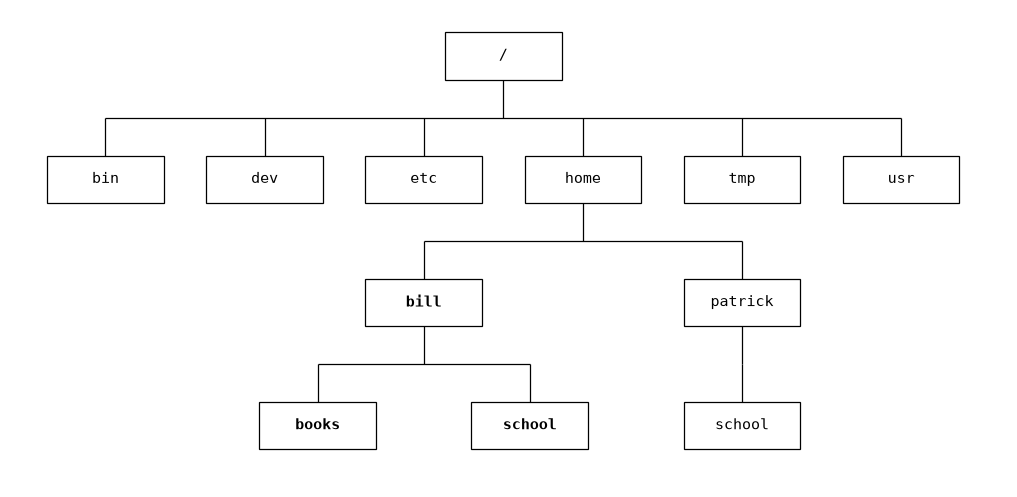
Fig. 1.8 File system directory structure in Unix-like operating systems#
Another first-level directories requires your attention is the home (Users in Windows and macOS) directory, which contains the users’ individual user home directories, specified as /home/[username] (C:\Users\ in Windows). Note that when you log into the system in terminal, this /home/[username] user home directory is usually your default working directory where the user types commands in the command prompt to interact with the system.
In the example above, bill and patrick are two users and their user home directories are /home/bill/ and /home/patrick/ respectively. When a user, for example, bill logs into the system, he will be in the bill user home directory and if he types a command ls and hit Enter, he will see that he has two folders in his user home directory: books and school.
PS C:\Users\[user]> ls

    Directory: C:\Users\[user]

Mode                 LastWriteTime         Length Name
----                 -------------         ------ ----
...
d-----          6/5/2026  12:40 AM                books
d-----          6/5/2026   2:31 AM                school
[user]@[computer]:~$ ls
books school

[user]@[computer]:~$ ls
Similarly, in Windows, files and directories are organized in a hierarchical structure; except that drive letters such as C: and D: are used for separate file structure roots, while Linux uses a unified, hierarchical structure starting from a single root (/) for all drives and devices. In Fig. 1.9, you see that, in File Explorer, if you click on Local Disk (C:) under This PC, there is a number of folders and files organized under the C: drive, you see a number of first-level directories just like under the root in Linux.
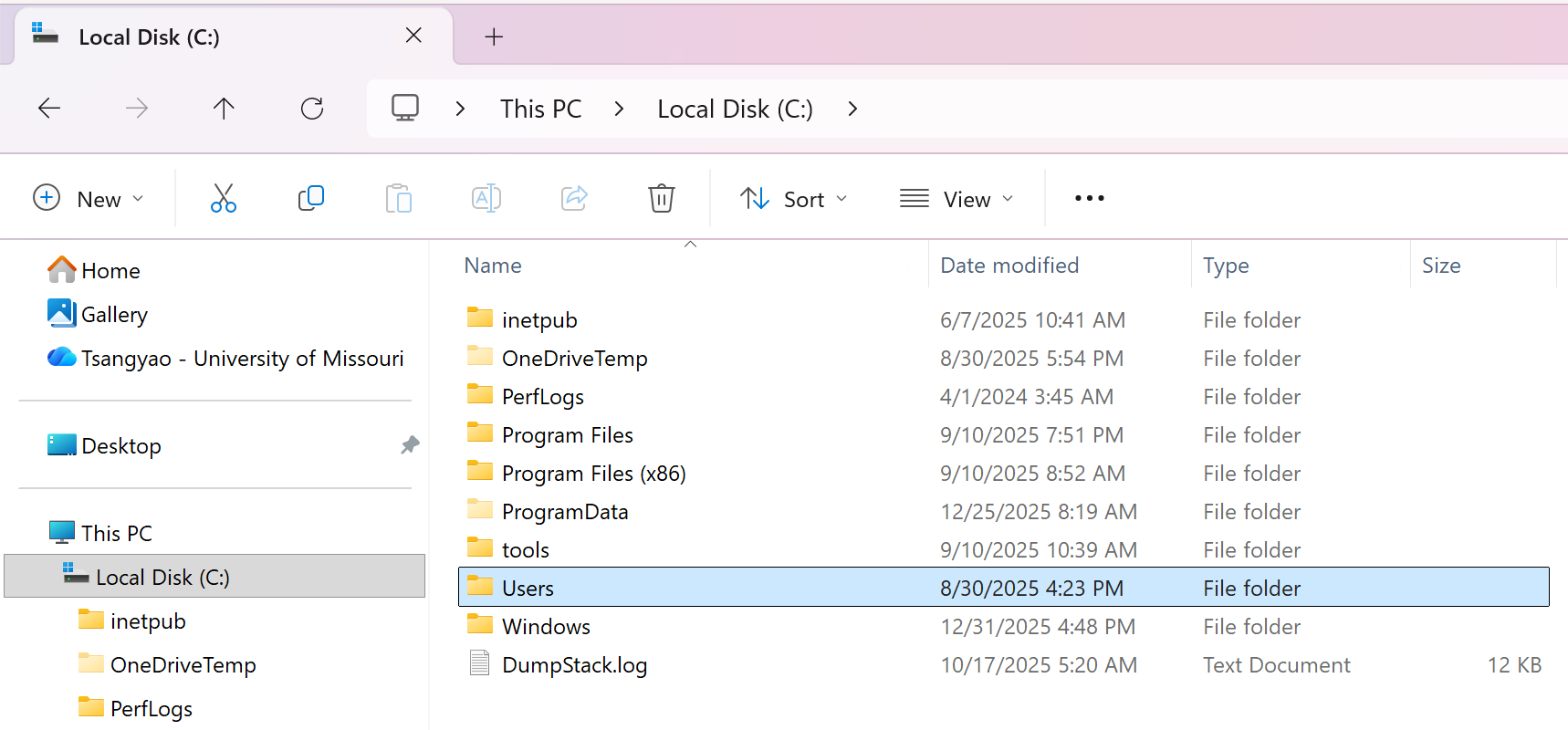
Fig. 1.9 Windows 11 Directory C: Drive#
If you click to expand the Users folder, File Explorer will display the folders (usernames) contained within it. When you select to highlight a username, you will see all the files and directories of that user. In this example in Fig. 1.10, a folder called workspace is highlighted.
Note that, in the CLI, this user home (C:\User\[user]) folder is the default location when a user logs in, just like in the Unix-like systems.
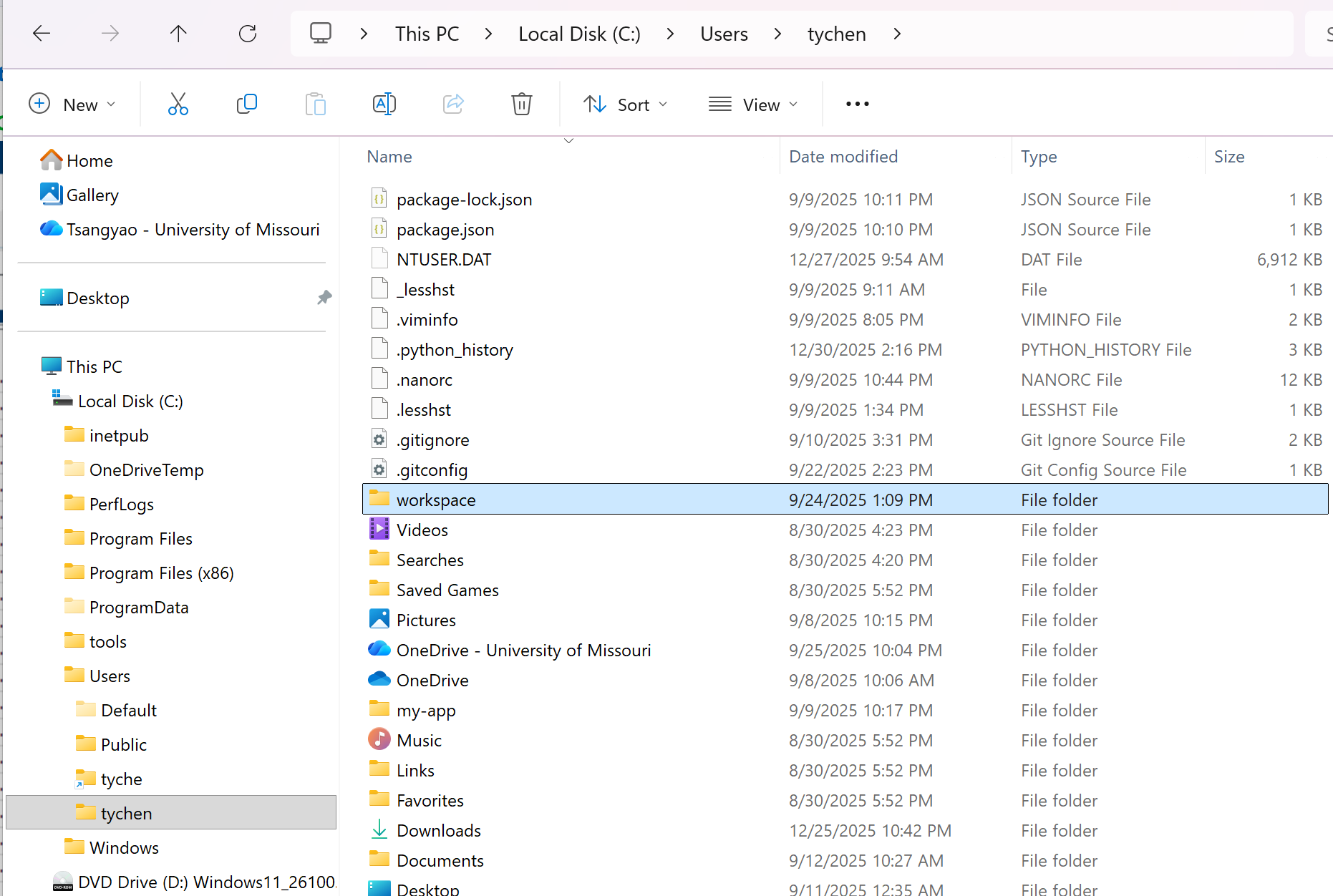
Fig. 1.10 Windows 11 Directory Hierarchy from C: Drive to User Home Directory#
1.3. Command Line Basics#
Having some knowledge of using the command-line interface (CLI) is necessary when learning coding and information technology. A CLI is commonly associated with terms such as command prompt, terminal, command line, console, and shell, although these terms have different technical meanings. In a CLI, users interact with a computer system primarily by entering text commands rather than using a graphical user interface (GUI). This can provide greater speed, automation, and granular control. (For a discussion on terminology such as terminal, console, and shell, see here).
A CLI environment usually include a terminal application, a system shell, and, when desired, a language REPL:
Term |
Definition |
Examples |
|---|---|---|
Terminal |
An application program that opens a command-line window and usually starts a default shell. It is called a “terminal emulator” because it emulates the locally-attached, text-based “dumb terminals” of early computing. |
|
Shell |
A command-line interface to the computer that interprets the user’s commands and passes them to the operating system. |
|
REPL |
A Read–Eval–Print Loop is an interactive environment for evaluating code one expression at a time, in a specific programming language. Also called a “language shell.” |
Python shell (the |
In summary, when you launch a terminal application, there is usually a default system shell, such as PowerShell, bash, or zsh, ready for you to enter commands at the command prompt. A shell can also serve as a scripting language, allowing you to write scripts in addition to entering individual commands.
macOS: Switching from zsh to bash
If you are a macOS user, modern macOS uses zsh as the default shell but bash has its advantages. To control which shell to use, open Terminal and use the following commands.
Action |
Command |
Output |
|---|---|---|
To check which shell is active |
|
either |
To start a |
|
(bash command prompt) |
To return to |
|
(zsh pormpt) |
To make bash the default login shell |
|
(Log out and back in, or reopen Terminal, for the change to take effect) |
When you open the CLI terminal application, you mainly use the keyboard, rather than a mouse, to issue text commands (you can still mostly use the mouse to highlight and copy/paste text). To start using the CLI, you start a terminal session first.
In Windows, you search for PowerShell, and you will see Windows PowerShell as an app. Click on it and you will see PowerShell window opening. You should see the shell in blue color with a blinking vertical bar at the command prompt line. That’s where you type your commands.
Windows PowerShell
Copyright (C) Microsoft Corporation. All rights reserved.

Loading personal and system profiles took 551ms.
PS C:\Users\[user]>
For macOS/Linux, you search for Terminal.app. You then mouse-click on the application or press Enter to open the terminal application and access the shell. If you have not customized your terminal, it may open as a small, plain window, and the default shell may be zsh. The command prompt may have a vertical block and that’s where you type your commands.
Last login: Sat Sep  5 16:48:40 on ttys001

[user]@[computer]:~$
1.3.1. Pathname and Special Characters#
Before learning shell commands, it is useful to know the pathname characters that describe locations in the file system. These characters are supported by major shells such as Bash and PowerShell:
Symbol |
Meaning |
Example |
|---|---|---|
|
The system root for Unix-like systems’ file directory tree structure. Also used as a separator for building file paths. |
|
|
The path separator for Windows paths, such as |
|
|
Represents the user’s home directory. |
|
|
The parent directory — relatively one level up from the current directory. |
|
|
Means the current directory. When placed at the beginning of a filename, it makes the file hidden. |
|
|
Quotation marks are used around paths that contain spaces. |
|
|
Redirects a command’s output to a file, overwriting the file’s existing contents. |
|
|
Redirects a command’s output to a file, appending to the end instead of overwriting. |
|
In this section, we are going to use two terminal commands: the ls (list) command to show the directories and files in the current directory; and cd (change directory) to change into certain locations in the file system directory structure.
To cd into a directory, you need build directory/file pathnames. There are two kinds of pathnames that you can use to cd into the path locations: absolute path and relative path.
Type |
Definition |
Example |
|---|---|---|
Absolute path |
The full location of a file or directory, starting from the system root — unambiguous regardless of the current working directory. |
|
|
||
Relative path |
A location described relative to the current working directory — depends on where the shell or program is currently running from. |
|
When starting the terminal, you should be in the user home directory by default. That is, you should see your username at the command prompt line. If you are not, you can use the change directory (cd) command to switch directory into your user home directory.
You should be in your user home directory when logged in and may see your username.
PS C:\Users\[user]>
At anytime (including when you just log in), if you are not in your user home directory (e.g., you are in the C:\Windows\System), cd into your user home directory (~):
PS C:\Windows\System> cd ~
PS C:\Users\[user]>
You can move up one level in the shell by issuing the command cd .., which means changing directory to the directory one level up. In the case here, you will be moving from your user home directory to the system’s home/Users directory, where you can issue the ls command to see the individual user home directories.
PS C:\Users\[user]> cd ..
PS C:\Users>ls

    Directory: C:\Users

Mode                 LastWriteTime         Length Name
----                 -------------         ------ ----
d-r---         8/30/2025   5:52 PM                Public
d----l         8/30/2025   4:23 PM                [user1]
d-----          9/6/2026   8:00 PM                [user2]

PS C:\Users>
Or, you can build a path/pathname and change directory to the path location. For example, you may want change into your own Desktop folder, which is /home/[user]/Desktop if you start the path from the root (/).
PS C:\Users\[user]> cd C:\Users\[user]\Desktop\
PS C:\Users\[user]\Desktop>
You should be in your user home directory when logged in and may see your computer name and username.
[user]@[computer]:~$
At anytime (including when you just log in), if you are not in your user home directory (e.g., you are in [user]@[computer]:/Users$, cd into your user home directory (~):
[user]@[computer]:/Users$ cd ~
[user]@[computer]:~$
You can move up one level in the shell by issuing the command cd .., which means changing directory to the directory one level up. In the case here, you will be moving from your user home directory to the system’s home/Users directory, where you can issue the ls command to see the individual user home directories.
[user]@[computer]:~$ cd ..
[user]@[computer]:/Users$ ls
Guest        Shared       [user1] [user2]
[user]@[computer]:/Users$
Or, you can build a path/pathname and change directory to the path location. For example, you may want change into your own Desktop folder, which is /home/[user]/Desktop if you start the path from the root (/).
[user]@[computer]:~$ cd /home/[user]/Desktop
[user]@[computer]:~/Desktop$
1.3.2. Essential Commands#
After you know how to describe paths, the essential commands below help you navigate and manage files from the command line.
Group |
Command |
Name |
What it does |
|---|---|---|---|
Navigation |
|
list |
Shows the files and directories in the current directory. |
|
change directory |
Moves the shell to another directory in the file tree. |
|
|
print working directory |
Shows the full path of the current directory. |
|
File operations |
|
make directory |
Creates a new empty directory. |
|
— |
Creates a new empty file or updates the timestamp of an existing file. |
|
|
copy |
Copies a file from the source path to the destination path. |
|
|
move |
Moves a file or directory. Also used to rename files, e.g. |
|
|
remove |
Deletes a file. Use carefully — removed files may not go to the trash. |
|
Output |
|
— |
Prints text to the terminal, e.g. |
|
concatenate |
Displays the contents of a text file in the terminal. |
|
Session control |
|
— |
Clears the terminal screen so the prompt appears at the top again. |
|
— |
Interrupts or terminates a running command. |
|
|
— |
Exits the current shell session or closes the terminal. |
1.3.3. Creating Directories and Files#
Suppose that you are in your user home directory and you would like to create a directory/folder called test_dir in your home diretory, you may use the mkdir command for that purpose and then use ls to make sure the directory is created. After that, you will change directory (cd) into the test_dir you just created, and create a file called test_file.txt with some content using a text editor.
PS C:\Users\[user]>
PS C:\Users\[user]> mkdir test_dir

    Directory: C:\Users\[user]

Mode                 LastWriteTime         Length Name
----                 -------------         ------ ----
d-----          9/6/2026  10:34 PM                test_dir

PS C:\Users\[user]> ls
d-----          9/8/2025  11:51 PM                .cache
...
d-----         9/11/2025  12:01 AM                .ssh
...
d-r---         8/30/2025   5:52 PM                Contacts
d-r---         9/11/2025  12:35 AM                Desktop
d-----         9/12/2025  10:27 AM                Documents
d-r---        12/25/2025  10:42 PM                Downloads
...
d-----          9/6/2026  10:34 PM                test_dir
...
PS C:\Users\[user]>
For macOS, instead of ls, let’s use ls -l (-l option stands for long format).
[user]@[computer]:~$ mkdir test_dir
[user]@[computer]:~$ ls
total 0
...
drwxr-xr-x   11 [user]  staff    352 Aug 22 06:57 Applications
drwx------@  15 [user]  staff    480 Sep  5 13:26 Desktop
drwx------@  15 [user]  staff    480 Sep  4 10:50 Documents
drwx------@ 401 [user]  staff  12832 Sep  2 21:56 Downloads
...
drwxr-xr-x    2 [user]  staff     64 Sep  6 22:39 test_dir
...
[user]@[computer]:~$
To create a file in the terminal, you may either use an editor or text stream redirection. Let us first change into the test_dir and then create a file test_file.txt there.
Change into test_dir then open the editor Notepad with an argument test_file.txt as the filename.
PS C:\Users\[user]> cd test_dir
PS C:\Users\[user]\test_dir> notepad test_file.txt
The Windows Notepad app will open. You edit the file there, say, e.g., type something like “keanu reeves is my cousin” and then from the menu File -> Save and exit Notepad.
You can now ls in the test_dir directory and you will see that the file test_file.txt is there.
PS C:\Users\[user]\test_dir> ls

    Directory: C:\Users\[user]\test_dir

Mode                 LastWriteTime         Length Name
----                 -------------         ------ ----
-a----          9/7/2026   1:43 AM             25 test_file.txt

PS C:\Users\[user]\test_dir>
Now, to see the content of the file, you can use the cat (concatenate) command.
PS C:\Users\[user]\test_dir> cat .\test_file.txt
keanu reeves is my cousin
PS C:\Users\[user]\test_dir>
Change into test_dir then open the editor nano with an argument test_file.txt as the filename.
[user]@[computer]:~$ cd test_dir
[user]@[computer]:~/test_dir> nano text_file.txt
The CLI editor nano app will open. You edit the file there, say, e.g., type something like “keanu reeves is my cousin” and do Ctl-X to exit and then Y (Yes) to save the modified buffer. Enter again to confirm that the filename: File Name to Write: test_file.txt and the nano editor will close.
You can now ls in the test_dir directory and you will see that the file test_file.txt is there.
[user]@[computer]:~/test_dir$ ls -l
total 8
-rw-r--r--  1 [user]  staff  26 Sep  7 01:56 test_file.txt
[user]@[computer]:~/test_dir$
Now, to see the content of the file, you can use the cat (concatenate) command.
[user]@[computer]:~/test_dir$ cat .\test_file.txt
keanu reeves is my cousin
[user]@[computer]:~/test_dir$
1.4. The Python Shell#
While shell languages such as bash and PowerShell communicate with operating systems, a programming language may have its own “shell” or REPL (Read-Eval-Print Loop), which serves as a command-line interactive environment for running code written in the programming language. This means that when you type code, the REPL interprets it and displays the results immediately. A REPL perfect for testing snippets, learning syntax, and exploring modules without creating files. Different languages have different REPLs, for example:
Language |
REPL |
|---|---|
Python |
Python shell |
Java |
JShell |
C# |
CSharpRepl |
The Python interpreter features a built-in interactive shell (the Python shell or “the interpreter”), which is the standard Python REPL and is widely used for quick code test. To access the Python shell, you can start your terminal (PowerShell in Windows Terminal or Terminal in macOS) and type py for Windows or python3 (or python) in macOS and hit the Enter/Return key. You will see the primary prompt, >>>, where you input code for immediate evaluation by the Python interpreter.
After entering the Python shell, you can issue an expression for immediate value evaluation such as 1 + 1.
After entering the Python shell by typing py and Return, enter 1 + 1.
PS C:\Users\[user]> py
Python 3.12.2 (tags/v3.12.2:6abddd9, Feb  6 2024, 21:07:00)
Type "help", "copyright", "credits" or "license" for more information.
>>> 1 + 1
2
>>>
After entering the Python shell by typing python3 and Enter, enter 1 + 1, which will evaluate to 2.
[user]@[computer]:~$ python3
Python 3.12.12 (main, Oct  9 2025, 11:07:00) [Clang 17.0.0 (clang-1700.3.19.1)] on darwin
Type "help", "copyright", "credits" or "license" for more information.
>>> 1 + 1
2
>>>
In the Python shell, you may start experiencing Python programming by printing “hello, world”. You do that by typing print("hello, world") at the Python shell:
After entering the Python shell (py), type print("hello, world") and Enter.
PS C:\Users\[user]> py
Python 3.12.2 (tags/v3.12.2:6abddd9, Feb  6 2024, 21:07:00)
Type "help", "copyright", "credits" or "license" for more information.
>>> print("hello, world")
hello, world
>>>
After entering the Python shell (python3), type print("hello, world") and Return.
[user]@[computer]:~/workspace/dsm$ python3
Python 3.13.7 (main, Aug 14 2025, 11:12:11) [Clang 17.0.0 (clang-1700.0.13.3)] on darwin
Type "help", "copyright", "credits" or "license" for more information.
>>> print("hello, world")
hello, world
>>>