
1.2. Python Basic Syntax#
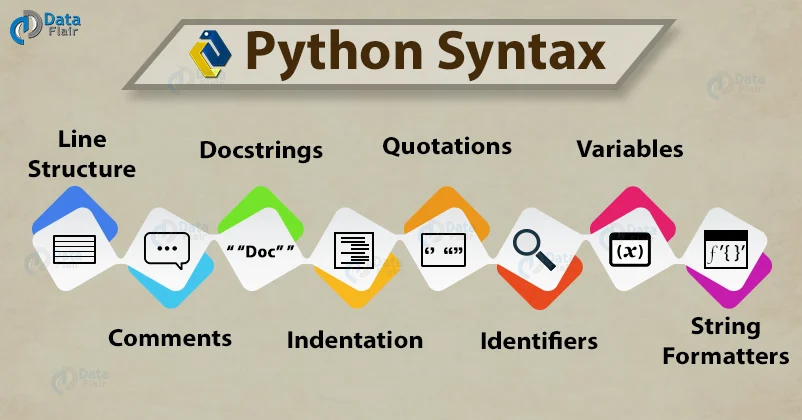
Fig. 1.5 Python Syntax Overview[dataflair Team, 2017]#
1.2.1. Indentation and Block Structure#
In Python, indentation defines code blocks instead of braces ({}), which many other languages use. Any line ending with a colon (:), such as if, for, while, def, or class, starts a new block, and the indented lines that follow belong to that block. Python expects consistent indentation (commonly 4 spaces per level), and mixing tabs and spaces or misaligning lines can raise IndentationError. When indentation changes, Python treats that as entering or leaving a block, so correct spacing controls program structure and execution flow.
for i in range(5):
print(i)                ### This line is not indented, so it will cause an error
Output
Cell In[2], line 2
    print(i)                ### This line is not indented, so it will cause an error
    ^
IndentationError: expected an indented block after 'for' statement on line 1
for i in range(5):
    print(i)            ### This line is indented, so it will work correctly
0
1
2
3
4
### Exercise: Fix indentation
# The code below should print three lines: 0, 1, and 2.
# Replace the pass statement with print(i), keeping it indented inside the loop.
for i in range(3):
    ### Your code starts here.
    pass
    ### Your code ends here.
0
1
2
1.2.2. Statement Formatting#
In Python, a statement usually ends at a newline, so each line is typically one statement. You can place multiple simple statements on one line using semicolons (;), but this is generally discouraged because it reduces readability. For long statements, Python allows implicit line continuation inside parentheses (), brackets [], or braces {}, which is the preferred way to split expressions across lines. Explicit continuation with a backslash (\) also works, but it is fragile because a trailing space after the backslash will cause an error. In practice, write one statement per line and use parentheses for multi-line expressions.
### 1) Newlines: one statement per line (preferred)
x = 10
y = 20
total = x + y
print(total)
30
### 2) Semicolons: multiple statements on one line (valid, but less readable)
x = 10; y = 20; print(x + y)
30
### 3) Multi-line with parentheses (preferred)
total = (
    100
    + 200
    + 300
)
print(total)
600
### 4) Multi-line with backslash (works, but less preferred)
total = 100 + 200 + \
        300
print(total)
600
### 5) Multi-line function call with parentheses
print(
    "Name:", "Alice",
    "Age:", 25
)
Name: Alice Age: 25
### Exercise: Split a long expression
# Rewrite the calculation of total inside parentheses across multiple lines.
# The answer should still print 46.5.
base_price = 32
shipping = 7.5
tax = 7
### Your code starts here.


### Your code ends here.
46.5
1.2.3. Input and Output#
Programs communicate through output and input. This section shows how print() displays values and how f-strings format them, then how input() reads text from the user and how to convert that text into numbers.
1.2.3.1. print() and F-Strings#
In Python, the print() function displays output on the screen. It is one of the most commonly used functions for debugging, showing results, and interacting with users.
The print() function displays values to the console/command line:
print("hello, world!") ### print a string
hello, world!
To print multiple values in one statement, you either comma-separate your values or concatenate the strings.
print("Name:", "Alice", "Age:", 25)       ### commas-separated
print("Name:" + " Alice" + " Age:", 25)   ### + concatenated
Name: Alice Age: 25
Name: Alice Age: 25
%%expect TypeError

print("I am " + 25 + " years old")      ### Error: can only concatenate str (not "int") to str
TypeError: can only concatenate str (not "int") to str
1.2.3.1.1. F-Strings#
F-strings (formatted string literals) are a readable and efficient way to format strings in Python (available since Python 3.6). An f-string is often preferred because it is concise and allows expressions inside {}, so you do not need to manually convert values to strings:
name = "Alice"
age = 25
print(f"My name is {name} and I am {age} years old.")   ### f-string with variables

x = 10
y = 20
print(f"The sum of {x} and {y} is {x + y}")             ### f-string with expressions
My name is Alice and I am 25 years old.
The sum of 10 and 20 is 30
score = 87
possible = 100
print(f"f-string formatting: Score: {score}/{possible} ({score / possible:.1%})")
print(f"Score: {score}/{possible} ({score / possible:.1%})")

print(f"\nAlternative formatting:")
print("Score: {}/{} ({}%)".format(score, possible, score / possible * 100))
f-string formatting: Score: 87/100 (87.0%)
Score: 87/100 (87.0%)

Alternative formatting:
Score: 87/100 (87.0%)
1.2.3.1.2. Format Specifications#
Inside the braces of an f-string, you can add a colon followed by a format specification that controls how the value is displayed. You already saw one above: {score / possible:.1%} shows a fraction as a percentage. The most common format specifications are:
:.2fshows a number with exactly 2 decimal places (fixed-point) and keeps trailing zeros.:,inserts commas as thousands separators.:.1%multiplies the value by 100 and shows it as a percentage with 1 decimal place.:>8right-aligns the value in a field 8 characters wide (<aligns left and^centers).
You can combine them, as in :,.2f, which adds thousands separators and shows 2 decimal places.
price = 4.5
revenue = 1234567.891
growth = 0.083
item = "apple"

print(f"Price: ${price:.2f}")        ### 2 decimal places
print(f"Revenue: {revenue:,.2f}")    ### thousands separator and 2 decimal places
print(f"Growth: {growth:.1%}")       ### percentage with 1 decimal place
print(f"|{item:>8}|{item:<8}|")      ### right-aligned and left-aligned in 8 characters
Price: $4.50
Revenue: 1,234,567.89
Growth: 8.3%
|   apple|apple   |
A format specification is different from round(). The round() function returns a number, and Python displays numbers without trailing zeros, so round(42.5, 2) still shows 42.5. A format specification produces text, so it shows exactly the number of decimal places you ask for. Use round() when you need a rounded value for further calculation, and use a format specification when you want to control how a value looks in output.
print(round(42.5, 2))     ### 42.5: round() returns a number, so the trailing zero is dropped
print(f"{42.5:.2f}")      ### 42.50: the format specification keeps 2 decimal places
42.5
42.50
1.2.3.1.3. Print Function Parameters#
The print() function has optional parameters:
object(s): one or more values to print. All are converted to strings before printing.sep: the string placed between objects; the default is a space.end: the string added at the end of the output; the default is a newline ("\n").file: the output destination; the default issys.stdout.flush: ifTrue, forces immediate output; the default isFalse.
### sep
print("A", "B", "C", "(separator is space by default)")   ### Output: A B C (separator is space by default)
print("A", "B", "C", sep="-")   ### Output: A-B-C (separator changed to '-')

### end
# list 1: print with different end characters
for num in range(5):
    print(num)                  ### Print numbers on separate lines
# list 2: print with different end characters
for num in range(5):
    print(num, end=" ")         ### Print numbers on the same line separated by space
A B C (separator is space by default)
A-B-C
0
1
2
3
4
0 1 2 3 4
### Exercise: Print "hello, world"
### The output should look the same as the cell below
### Your code begins here


### Your code ends here
hello, world
### Exercise: Format a dataset summary
# Use the variables below to print exactly these two lines:
# sales: 128 rows x 5 columns
# sales|128|5
# Use an f-string for the first line.
# Use print() with sep="|" for the second line.
dataset_name = "sales"
row_count = 128
column_count = 5
### Your code starts here.


### Your code ends here.
sales: 128 rows x 5 columns
sales|128|5
### Exercise: Format a price report
# Use f-strings with format specifications to print exactly these three lines:
# Unit price: $8.50
# Total sales: 12,750.00
# Discount: 15.0%
unit_price = 8.5
total_sales = 12750
discount_rate = 0.15
### Your code starts here.


### Your code ends here.
Unit price: $8.50
Total sales: 12,750.00
Discount: 15.0%
1.2.3.2. Keyboard Input#
Python provides a built-in function called input that stops the program and waits for the user to type something. When the user presses Return or Enter, the program resumes, and input returns what the user typed as a string. Before getting user input, you might want to display a prompt that explains what to type. The input syntax is:
variable = input("Prompt message: ")
To execute the following examples, enable Live Code and uncomment the input() line.
### uncomment the line below to make the code work

# name = input("Enter your name [{default_name}]: ")
print("Hello, " + name + "!")
Hello, Alice!
1.2.3.3. Type Conversion with Input#
The user input will be a string type, so if you expect the user to type an integer, you can use the int function to convert the return value to int.
### uncomment the line below ot make the code work

# age = input("Enter your age: ")

print(type(age))                      ### age is of string type
age = int(age)                        ### convert input string to integer

print(type(age))
print(f"You are {age} years old.")
<class 'int'>
<class 'int'>
You are 25 years old.
Or, just combine the intput function and the int() function together.
### uncomment the line below to make the code work

# age = int(input("Enter your age: "))      ### Directly convert input to integer

print(type(age))

print(f"You are {age} years old.")
<class 'int'>
You are 25 years old.
The int() function is not the only conversion function. Use float() when the text holds a decimal number, such as a price. Use str() to turn a number into text, for example when you want to join it to other strings with +. Recall that "I am " + 25 raised a TypeError earlier; converting the number with str() fixes that.
price_text = "19.99"                         ### text typed by a user
price = float(price_text)                    ### convert decimal text to a float
print(price * 2)

age = 25
message = "I am " + str(age) + " years old"  ### convert the number to text before joining
print(message)
39.98
I am 25 years old
You can also update a variable using its own current value. In total = total + 5, Python first evaluates the right side with the current value of total, then stores the result back in total. This pattern keeps running totals and counts up to date.
total = 10
total = total + 5     ### use the old value (10), then store the new value (15)
print(total)

total = total - 3     ### update again from the current value (15)
print(total)
15
12
Once text is converted to a number, you can do arithmetic with it. Two operators are handy for splitting a total into whole units and a leftover, such as minutes into hours, or items into full boxes: // (floor division) gives the whole number of times one number fits into another, and % (remainder, also called modulus) gives what is left over. Section 2.2 covers both operators in detail.
total_minutes = int("135")
print(total_minutes // 60)   # 2  (full hours)
print(total_minutes % 60)    # 15 (minutes left over)
2
15
### Exercise: Convert text input to numbers
# input() returns text, so numeric input usually needs conversion.
# The variable below simulates text a user typed into input().
# Convert minutes_text to an integer named total_minutes.
# Calculate full hours in a variable named hours_part.
# Calculate leftover minutes in a variable named minutes_part.
# Print hours_part and minutes_part.
minutes_text = "135"
### Your code starts here.


### Your code ends here.
Hours: 2
Minutes: 15
1.2.5. Objects#
Every value in Python, whether it is a number, a string, or a function, is an object. An object is a piece of data stored in memory, and every object has three properties:
a type, which says what kind of value it is and what you can do with it,
a value, which is the data itself, and
an identity, which tells it apart from every other object while the program runs.
A variable is a name that refers to an object.
Two built-in functions let you inspect an object. type() returns the object’s type, and id() returns its identity as an integer. You can think of the identity as the object’s address in memory. The number changes each time you run the program, so do not rely on a particular value. Section 2.1 looks at objects and identity in more detail.
score = 95
print(type(score))     ### the type: int
print(score)           ### the value: 95
print(id(score))       ### the identity: an integer that is unique while the object exists
<class 'int'>
95
140140617117320
### Exercise: Inspect object information
# Use the value below to inspect an object.
# Print its type, value, and identity with type(), the variable itself, and id().
value = "Python"
### Your code starts here.


### Your code ends here.
<class 'str'>
Python
140140616346080
1.2.6. Python Keywords#
Python reserved words, or keywords, are words that you are not supposed to use for variable names.
Reserved words, or keywords, are special words reserved by the programming language to be used to specify the structure of a program. Keywords of the language cannot be used as ordinary identifiers (such as variable names).
For example, if you try to assign a string to a variable named class, you will receive a syntax error because class is a keyword.
%%expect SyntaxError
class = 'Assigning a string to a keyword to be a variable name...'
  Cell In[42], line 1
    class = 'Assigning a string to a keyword to be a variable name...'
          ^
SyntaxError: invalid syntax
Here’s a complete list of 35 Python keywords as shown in the Python Language Reference:
False      await      else       import     pass
None       break      except     in         raise
True       class      finally    is         return
and        continue   for        lambda     try
as         def        from       nonlocal   while
assert     del        global     not        with
async      elif       if         or         yield
Keywords are part of Python’s syntax. Instead of memorizing all 35 at once, it helps to group some common ones by the jobs they do:
Category |
Examples |
|---|---|
Flow control |
|
Definitions |
|
Boolean logic and identity |
|
Imports and scope |
|
Exceptions and context |
|
Async and generators |
|
In most development environments, keywords are displayed in a different color; if you try to use one as a variable name, the editor or interpreter will warn you.
To show all the Python keywords, you can do:
from keyword import kwlist
print("Number of Python keywords:", len(kwlist), "\n")
print("All Python keywords: \n", kwlist)
Number of Python keywords: 35

All Python keywords:
 ['False', 'None', 'True', 'and', 'as', 'assert', 'async', 'await', 'break', 'class', 'continue', 'def', 'del', 'elif', 'else', 'except', 'finally', 'for', 'from', 'global', 'if', 'import', 'in', 'is', 'lambda', 'nonlocal', 'not', 'or', 'pass', 'raise', 'return', 'try', 'while', 'with', 'yield']
As stated earlier, keywords form the program structure. The examples below show how keywords act like the grammatical parts of a program.
For example, if is a keyword in Python and is highlighted in most code editors.
### example of the "if" keyword in Python
num = 5
if num > 0:
    print("Positive number")
Positive number
And for and in are also keywords.
### example of the "for" keyword in Python
for i in range(5):
    print(i, end=" ")
0 1 2 3 4
1.2.6.1. Soft keywords#
Python’s soft keywords are special words that act as keywords only in specific contexts, but can be used as regular identifiers (such as variable or function names) in other contexts. As of Python 3.12, there are four soft keywords: match, case, _, and type.
### Exercise: Check keywords
# Import the keyword module.
# Store whether "class" is a Python keyword in class_is_keyword.
# Store whether "dataset" is a Python keyword in dataset_is_keyword.
# Print both values.
### Your code starts here.


### Your code ends here.
True
False
1.2.7. Built-In Functions#
In Python, built-in functions and built-in modules are both part of the standard tools the language gives you, but they serve different purposes. Built-in functions are ready to use without requiring any imports. They are automatically available in every Python program. Examples of built-in functions include print() and len().
For the functionalities that Python does not provide, you either:
Find a third-party module or package (or library) with the functions, install the package, and use the contained functions, or
Write a user-defined custom function or class method.
There are 71 built-in functions in recent Python 3 releases.
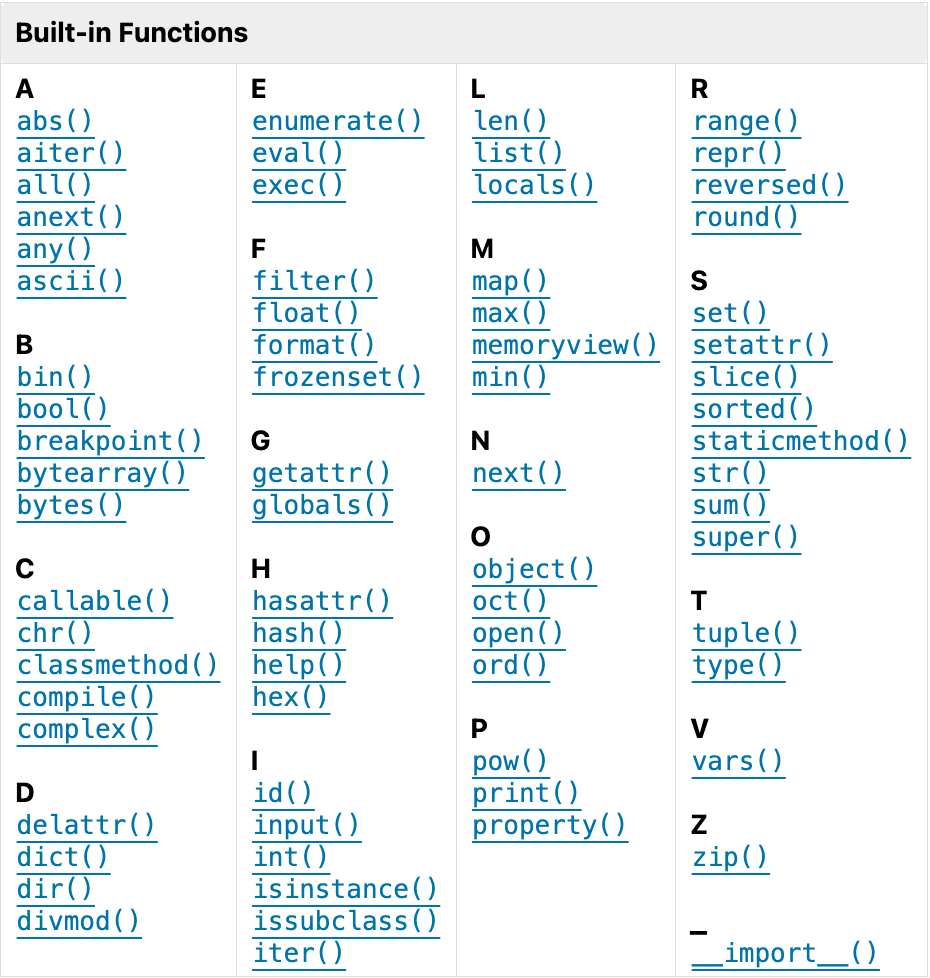
Fig. 1.6 Python Built-in Functions#
The built-in functions are available without import. The table below lists a compact working set for Python programs.
Function |
Purpose |
|---|---|
|
display output |
|
inspect an object’s type |
|
count items in a sequence or collection |
|
round a number |
|
absolute value |
|
smallest or largest value |
|
add numeric values |
|
return a sorted list |
|
read text from a user in interactive programs |
In the Python Standard Library, you can find all the 71 Python built-in functions listed:
Fig. 1.7 Python Built-In Functions#
The 71 Python built-in functions can be grouped by purpose.
# |
Group |
Functions |
Notes |
|---|---|---|---|
1 |
Numbers & math |
|
|
2 |
Type construction/conversion |
|
Convert or construct core types. |
3 |
Object/attribute introspection |
|
|
4 |
Attribute access |
|
Dynamic attribute management. |
5 |
Iteration & functional tools |
|
Prefer comprehensions when clearer. |
6 |
Sequence/char helpers |
|
|
7 |
I/O |
|
|
8 |
Formatting / representation |
|
Also see f-strings for formatting. |
9 |
Object model (OOP helpers) |
|
Define descriptors and class behaviors. |
10 |
Execution / metaprogramming |
|
Use with care; security concerns for untrusted input. |
11 |
Environment / namespaces |
|
Introspection of current namespaces. |
12 |
Help/debugging |
|
|
13 |
Import |
|
Low-level import; usually use |
As an example, you can apply functions on a Python list called scores like:
scores = [88, 92, 75, 100, 83]
print(len(scores))
print(min(scores), max(scores))
print(sum(scores) / len(scores))
print(sorted(scores))
5
75 100
87.6
[75, 83, 88, 92, 100]
Some functions return values you can store and reuse, while print() displays output but returns None.
return_value = print("display only")
print(return_value)
display only
None
1.2.7.1. Arguments#
When you call a function, the expressions inside the parentheses are called arguments. A function may take no argument or more than one argument. For example:
num1 = int('101')           ### take one argument; string to integer
num2 = int('101', 2)        ### take two argument; convert base 2 to int
num3 = round(1.2345, 2)     ### 2 arg; round to two decimal places

print(num1)
print(num2)
print(num3, 'round to 2 places')     ### two arguments

print()                     ### no argument
101
5
1.23 round to 2 places
1.2.7.2. Return Values#
When you call built-in functions such as abs(), round(), sqrt(), and pow(), they return a value you can assign to a variable or use as part of an expression.
You use the print() function to display values, but it doesn’t return values that you can assign to variables or use in expressions. So, print()
import math

math.sqrt(42 / math.pi)            ### returns value
3.656366395715726
radius = math.sqrt(42 / math.pi)    ### assign return to variable
radius                              ### evaluate variable
3.656366395715726
If a function doesn’t have a return statement, it returns None, which is a special value like True and False.
For example, you have used the print function to display strings, but it does not use a return statement to return a value. If we assign the result of a print statement to a variable, the variable will have the value of None.
The example below still shows the output of the print () statement first, though, even when it’s been assigned.
unknown = print('a string')
print(unknown)
a string
None
### Exercise: Summarize prices with built-in functions
# The list below holds the prices of five fruits in dollars.
# Use built-in functions to store the number of prices in count,
# the lowest and highest prices in lowest and highest,
# and the average price rounded to 2 decimal places in average.
# Print count, then lowest and highest on one line, then average.
prices = [1.25, 0.5, 2.75, 3.1, 0.89]
### Your code starts here.


### Your code ends here.
5
0.5 3.1
1.7
1.2.8. Modules and Packages#
In Python, functions, classes, modules, packages, and libraries are essential tools for organizing and reusing code. In contrast to built-in functions, you need to use the import keyword to import the module before you use it.
Term |
What It Is |
Typical Use |
|---|---|---|
Function |
A named, reusable block of code that performs one specific task and can be called multiple times. |
Break problems into smaller steps and avoid repeating logic. |
Class |
A blueprint for creating objects that bundle data (attributes) and behavior (methods). |
Model real-world entities and organize related state + behavior. |
Module |
A single Python file ( |
Split code into files and import what you need. |
Package |
A directory of related modules (and often subpackages) that forms a larger namespace. |
Organize multi-file projects into clear components. |
Library |
A broader collection of packages/modules built to solve common domains or tasks. |
Reuse mature tools (e.g., data analysis, web, scientific computing) instead of building from scratch. |
Together, these components help make Python code more organized, efficient, and maintainable. The most important distinction for now is:
Module: a single Python file (e.g.,
mymodule.py).Package: a directory of modules (optionally with
__init__.py).
1.2.8.1. Importing Modules#
Python ships with about 300 built-in and standard-library modules. For those modules, you can import them directly and use them (for example, import math). There are different ways of importing:
Import Pattern |
Example Code |
Usage Example |
Description |
|---|---|---|---|
Standard import |
|
|
Clear, namespaced imports |
Aliased import |
|
|
Alias for brevity (common with large libs) |
Selective import |
|
|
Convenient, but use sparingly for readability |
Import all (not recommended) |
|
|
Imports all names; can cause name conflicts and is discouraged |
Style notes: Prefer absolute imports in top-level scripts; reserve relative imports for package internals. Follow PEP 8 import order: standard library → third-party → local.
To use methods or attributes from a module, use the dot operator (.) between the module name and the attribute name. For example, the Python math module provides a variable called pi that contains the mathematical constant denoted \(\pi\). We can access it as math.pi:
import math
math.sqrt(25)     ### dot operator
5.0
### Exercise: Import a module and use dot notation
# Import math.
# Store the square root of 144 in root_value.
# Store the area of a circle with radius 3 in circle_area.
# Print root_value and round(circle_area, 2).
### Your code starts here.


### Your code ends here.
12.0
28.27
1.2.8.2. Installing Packages#
External, third-party modules are created by the Python community. You must use pip to install them first (for example, notebook, NumPy, or pandas), then import them before using them. Most software on the Python Package Index (PyPI; https://pypi.org, where pip finds software packages) is referred to as “packages” in this context.
To install the packages in the CLI, you would go into your project directory, activate your virtual environment, and then use the pip installation syntax to install the package into your .venv folder (site-packages) for dependency integrity:
pip install [package_name]
If you are in Jupyter Notebook, use the Jupyter Notebook magic command %pip (instead of the older !pip) to install the package into the active kernel:
%pip install [package_name]
For example, NumPy (numeric Python) is a popular package for data science. From inside Jupyter Notebook, you can install it with:
%pip install numpy
Requirement already satisfied: numpy in /opt/hostedtoolcache/Python/3.11.17/x64/lib/python3.11/site-packages (2.4.6)
Note: you may need to restart the kernel to use updated packages.
You probably want to comment the %pip install line out after installation as you only need to install it once in the virtual environment.
1.2.4. Comments#
Comments are explanatory notes in your code that are ignored by the Python interpreter. Comments are used to:
Explain complex logic: help others (and your future self) understand what the code does.
Document assumptions: note why certain decisions were made.
Mark TODO items: indicate areas that need improvement or completion.
Disable code temporarily: comment out code for testing without deleting it.
Single-line comments start with the hash symbol
#. Everything after#on that line is ignored by Python. For multi-line comments, we use multiple hashes.Ideally, good variable names can reduce the need for comments, but long names can make complex expressions hard to read, so there is a tradeoff. For example,
velocity_mph = 8might be clear without a comment, butv = 8 # velocity in miles per hourmight be more readable in a mathematical formula.1.2.4.1. Docstring#
Unlike comments, which are ignored by the Python interpreter at runtime, docstrings are string literals used for documentation. They are processed by the interpreter and can be accessed with
__doc__orhelp()as part of the program.Usually, a docstring is a string literal written as the first statement inside a module, function, class, or method to describe what it does, its inputs, outputs, or behavior. By convention it uses triple quotes (
"""...""") so it can span multiple lines.Show code cell source
Hide code cell source