

8.1. Strings#
A string is a sequence of characters enclosed in quotes. A character can be a letter (in almost any alphabet), a digit, a punctuation mark, or white space.
It should be noted that strings are immutable, meaning after creation, they cannot be modified or updated.
Strings are one of the most commonly used data types in Python, and Python provides a rich set of built-in operations and methods for working with them.
In this section we cover:
Creating strings
Indexing and slicing
Concatenation and repetition
Case methods
Searching and testing
Cleaning
Splitting and joining
String formatting
Type-checking methods
String comparison
Docstrings
Application
8.1.1. String Creation and Accessing#
Strings are created through assignment operator using single, double, or triple quotes: ‘hello’, “hello”, “””hello”””.
The built-in Python function len() works with string as well.
s = 'supercalifragilisticexpialidocious'

print(type(s))

n = len(s)
print(n)
<class 'str'>
34
Single and double quotes are interchangeable for single-line strings. Triple quotes are used for multi-line strings or strings that contain both single and double quotes.
s1 = 'Hello, world!'
s2 = "Hello, world!"
s3 = """This is
a multi-line
string."""

print(s1)
print(s2)
print(s3)
Hello, world!
Hello, world!
This is
a multi-line
string.
8.1.1.1. Escape Sequences and Raw Strings#
Inside a string, a backslash \ introduces an escape sequence — a two-character combination that represents a special character:
Escape Sequence |
Meaning |
Example output |
|---|---|---|
|
Newline |
moves to the next line |
|
Tab |
inserts a horizontal tab |
|
Backslash |
a literal |
|
Double quote |
|
|
Single quote |
|
A raw string is prefixed with r (or R) and treats backslashes as literal characters — no escape sequences are processed. Raw strings are especially useful for regular expression patterns and file paths.
print("line1\nline2")       # newline
print("col1\tcol2")         # tab
print("C:\\Users\\ty")      # literal backslashes
print(r"C:\Users\ty")       # raw string — same result, easier to read
line1
line2
col1	col2
C:\Users\ty
C:\Users\ty
### EXERCISE: Escape Sequences and Raw Strings
# Difficulty: Basic
# 1. Print two words on two lines using \n
# 2. Print two values separated by a tab using \t
# 3. Print a Windows path using a raw string
### Your code starts here:


### Your code ends here.
apple
banana
score	95
C:\Users\alice\data
8.1.1.2. Indexing and Slicing#
Strings are sequences, meaning each character has a numbered position called an index. Python uses zero-based indexing: the first character is at index 0, the second at index 1, and so on. Negative indices count from the end of the string.
8.1.1.2.1. String Indexing#
As a sequence type, the expression in brackets is an index, so called because it indicates which character in the sequence to select. String indexing is 0-based.
fruit = "banana"
print(fruit[0])
b
You can select a character from a string with the bracket operator.
s = 'Python'

print(s[0])    # 'P'  — first character
print(s[1])    # 'y'  — second character
print(s[-1])   # 'n'  — last character
print(s[-2])   # 'o'  — second to last
P
y
n
o
As a reminder, the last letter of a string is the length of the string minus 1. If you use len() to access the last element of the sequence you get an IndexError (string index out of range) because there is no element there to be accessed: 0-based indexing.
Also because of 0-based indexing, to get the last character, you have to subtract 1 from n (n-1).
fruit = 'banana'
n = len(fruit)
%%expect IndexError

fruit[n]
IndexError: string index out of range
fruit[n-1]
'a'
Often forgotten, there’s an easier way to access the last element of a sequence: negative indexing, which counts backward from the end. The index -1 selects the last letter, -2 selects the second to last, and so on.
fruit[-1]
'a'
The index in brackets can be a variable. Or an expression that contains variables and operators.
i = 1
print(fruit[i])
print(fruit[i+1])

for i in range(len(fruit)):
    print(fruit[i], end=' ')
a
n
b a n a n a
Just like lists and tuples, the value of the index has to be an integer – otherwise you get a TypeError.
%%expect TypeError

fruit[1.5]
TypeError: string indices must be integers, not 'float'
It is tempting to use the [] operator on the left side of an
assignment, with the intention of changing a character in a string.
The result is a TypeError. In the error message, the object is the string and the “item” is the character we tried to assign.
The reason for this error is that strings are immutable, which means you can’t change an existing string.
greeting = 'hello, world'
%%expect TypeError

greeting[0] = 'J'
TypeError: 'str' object does not support item assignment
The best you can do is create a new string that is a variation of the original.
new_greeting = 'J' + greeting[1:]     ### "+" is concatenate here
new_greeting
'Jello, world'
This example concatenates a new first letter onto a slice of greeting.
It has no effect on the original string.
greeting
'hello, world'
8.1.1.2.2. Slicing Strings#
Just like lists and tuples, a segment of a string is called a slice. Selecting a slice is similar to selecting a character. The general syntax of slicing is the same as lists and tuple:
sequence[start:stop:step]
Also, the parameters are start-inclusive and stop-exclusive.
start— index to begin at (inclusive, default0)stop— index to end at (exclusive, default end of string)step— how many characters to skip (default1)
fruit = 'banana'
fruit[0:3]
'ban'
The operator [m:n] returns the part of the string from the mth character to the nth character, including the first but excluding the second. This behavior is counterintuitive, but it might help to imagine the indices pointing between the characters, as in this figure:
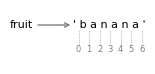
For example, the slice [3:6] selects the letters ana, which means that 6 is legal as part of a slice, but not legal as an index.
Also,
if you omit the first index, the slice starts at the beginning of the string.
if you omit the second index, the slice goes to the end of the string:
s = 'Hello, world!'

print(s[0:5])    # 'Hello'   — characters 0 through 4
print(s[7:])     # 'world!'  — from index 7 to end
print(s[:5])     # 'Hello'   — from start to index 4
print(s[::2])    # every other character
print(s[::-1])   ### 'reversed string' ###
Hello
world!
Hello
Hlo ol!
!dlrow ,olleH
If the first index is greater than or equal to the second, the result is an empty string, represented by two quotation marks. An empty string contains no characters and has length 0.
print(f"len(fruit[3:3]): {len(fruit[3:3])}")
print(f"Type of fruit[3:3]: {type(fruit[3:3])}")
fruit[3:3]
len(fruit[3:3]): 0
Type of fruit[3:3]: <class 'str'>
''
Continuing this example, what do you think fruit[:] means? Try it and
see.
fruit[:]
'banana'
To practice your slicing skills, play these in your head with string “banana”, which may not be as easy as you think.
fruit[0:-1]
fruit[-2:]
fruit[0:-1:2]

# print(fruit[0:-1])              ### all but the last letter: banan
# print(fruit[-2:])               ### the last two letters: na
# print(fruit[0:-1:2])            ### step is 2, so you get bnn
'bnn'
### EXERCISE: Indexing and Slicing
# Difficulty: Basic
text = 'superpython'
# 1. Print the first character
# 2. Print the last character using negative indexing
# 3. Print every second character
# 4. Print the reversed string
### Your code starts here:


### Your code ends here.
s
n
spryhn
nohtyprepus
8.1.1.3. Concatenation and Repetition#
The + operator joins two strings together (concatenation). The * operator repeats a string a given number of times (repetition).
first = 'Hello'
last  = 'World'

# Concatenation
greeting = first + ', ' + last + '!'
print(greeting)        # 'Hello, World!'

# Repetition
line = '* ' * 10
print(line)            # '* * * * * * * * * * '

print('ha' * 3)        # 'hahaha'
Hello, World!
* * * * * * * * * *
hahaha
### EXERCISE: Concatenation and Repetition
# Difficulty: Basic
first = 'Alice'
last = 'Bob'
# 1. Build and print: "Alice & Bob" using concatenation
# 2. Print "ha" repeated 4 times
# 3. Create a divider of 20 dashes and print it
### Your code starts here:


### Your code ends here.
Alice & Bob
hahahaha
--------------------
8.1.2. String Methods#
Python provides strings methods that perform a variety of useful operations. A method is similar to a function, it usually takes arguments and returns a value. But the syntax for methods is different from that of functions. A method belongs to an object, so, for example, the method upper() that returns a new all uppercase string has to come after a string object with a . (dot notation), which makes the method syntax like'banana'.upper() to output ‘BANANA’, instead of what a function would look like upper('banana').
word = 'banana'
new_word = word.upper()
new_word
'BANANA'
This use of the dot operator specifies the name of the method, upper, and the name of the string to apply the method to, word.
The empty parentheses indicate that this method takes no arguments.
A method call is called an invocation; in this case, we would say that we are invoking upper on word.
methods = [m for m in dir(str) if not m.startswith('_')]
num_str_methods = len(methods)
print(num_str_methods)  # 47
print(methods)
47
['capitalize', 'casefold', 'center', 'count', 'encode', 'endswith', 'expandtabs', 'find', 'format', 'format_map', 'index', 'isalnum', 'isalpha', 'isascii', 'isdecimal', 'isdigit', 'isidentifier', 'islower', 'isnumeric', 'isprintable', 'isspace', 'istitle', 'isupper', 'join', 'ljust', 'lower', 'lstrip', 'maketrans', 'partition', 'removeprefix', 'removesuffix', 'replace', 'rfind', 'rindex', 'rjust', 'rpartition', 'rsplit', 'rstrip', 'split', 'splitlines', 'startswith', 'strip', 'swapcase', 'title', 'translate', 'upper', 'zfill']
from myst_nb import glue
glue("num_str_methods", num_str_methods)
47
Python offers 47 string methods. Here below is a collection of some of the commonly used ones.
Category |
Method |
Description |
|---|---|---|
Case |
|
All uppercase |
Case |
|
All lowercase |
Search |
|
Index of first match, -1 if missing |
Search |
|
Index of first match, raises error if missing |
Search |
|
Count occurrences |
Whitespace |
|
Remove leading/trailing whitespace |
Split |
|
Split on delimiter |
Join |
|
Join list into string |
Replace |
|
Replace all occurrences |
Check |
|
All whitespace |
Check |
|
All uppercase |
Check |
|
All lowercase |
s = "  Hello, World!  "
words = "the quick brown fox"

# Case
print("--- Case ---")
print(s.upper())
print(s.lower())

# Search
print("\n--- Search ---")
print(words.find("quick"))
print(words.index("fox"))
print(words.count("o"))

# Whitespace
print("\n--- Whitespace ---")
print(repr(s.strip()))

# Split
print("\n--- Split ---")
print(words.split(" "))

# Join
print("\n--- Join ---")
print(", ".join(["apple", "banana", "cherry"]))

# Replace
print("\n--- Replace ---")
print(words.replace("fox", "cat"))

# Check
print("\n--- Check ---")
print("   ".isspace())
print("HELLO".isupper())
print("hello".islower())
--- Case ---
  HELLO, WORLD!
  hello, world!

--- Search ---
4
16
2

--- Whitespace ---
'Hello, World!'

--- Split ---
['the', 'quick', 'brown', 'fox']

--- Join ---
apple, banana, cherry

--- Replace ---
the quick brown cat

--- Check ---
True
True
True
8.1.2.1. Case Methods#
Python provides several methods for changing the case of a string. These are useful for normalizing text before comparison or display.
s = 'hello, world!'

print(s.upper())        # 'HELLO, WORLD!'  — all uppercase
print(s.lower())        # 'hello, world!'  — all lowercase
print(s.title())        # 'Hello, World!'  — first letter of each word capitalized
print(s.capitalize())   # 'Hello, world!'  — first letter of string capitalized
print(s.swapcase())     # 'HELLO, WORLD!'  — swap upper and lower
HELLO, WORLD!
hello, world!
Hello, World!
Hello, world!
HELLO, WORLD!
Case methods are often used to make comparisons case-insensitive. For example, you might want to turn a username or email address all uppercase in the case of user login.
user_input = 'Alice'
username    = 'alice'

print(user_input == username)                    # False
print(user_input.lower() == username.lower())    # True
False
True
### EXERCISE: Case Methods
# Difficulty: Basic
user_input = 'PyThOn'
target = 'python'
# 1. Print user_input in upper, lower, and title case
# 2. Print whether user_input matches target case-insensitively
### Your code starts here:


### Your code ends here.
PYTHON
python
Python
True
8.1.2.2. Searching and Testing#
8.1.2.2.1. Finding a Substring#
find(sub) returns the index of the first occurrence of sub, or -1 if not found. index(sub) works the same way but raises a ValueError if the substring is not found.
s = 'data science and data engineering'

print(s.find('data'))     # 0  — first occurrence
print(s.find('data', 5))  # 17 — search starting at index 5
print(s.find('math'))     # -1 — not found

print(s.rfind('data'))    # 17 — last occurrence
0
17
-1
17
8.1.2.2.2. Counting Occurrences#
count(sub) returns the number of non-overlapping occurrences of a substring.
s = 'banana'
print(s.count('a'))    # 3
print(s.count('an'))   # 2
3
2
8.1.2.2.3. Starts and Ends With#
startswith(prefix) and endswith(suffix) test whether a string begins or ends with a given substring. Both return True or False.
filename = 'report_2025.csv'

print(filename.startswith('report'))   # True
print(filename.endswith('.csv'))       # True
print(filename.endswith('.xlsx'))      # False
True
True
False
8.1.2.2.4. The in Operator#
The in operator tests whether a substring appears anywhere in a string. It is the most readable way to check for membership.
s = 'machine learning'

print('learning' in s)    # True
print('deep' in s)        # False
print('deep' not in s)    # True
True
False
True
### EXERCISE: Searching and Testing
# Difficulty: Intermediate
sentence = 'data science uses data pipelines'
# 1. Find the index of the first "data"
# 2. Find the index of "data" starting from position 5
# 3. Count how many times "data" appears
# 4. Check if "science" is in sentence
### Your code starts here:


### Your code ends here.
0
18
2
True
8.1.2.3. Cleaning#
Real-world text data often contains extra whitespace or unwanted characters. Python provides several methods for cleaning strings.
8.1.2.3.1. Stripping Whitespace#
strip()removes leading and trailing whitespace.lstrip()(left strip) removes only leading whitespace.rstrip()(right strip) removes only trailing whitespace.
s = '   hello, world!   '

print(repr(s.strip()))    # 'hello, world!'
print(repr(s.lstrip()))   # 'hello, world!   '
print(repr(s.rstrip()))   # '   hello, world!'
'hello, world!'
'hello, world!   '
'   hello, world!'
You can also pass a character to strip. For example, s.strip('.') removes leading and trailing periods.
s = '...hello...'
print(s.strip('.'))    # 'hello'
hello
8.1.2.3.2. Replacing Substrings#
replace(old, new) returns a new string with all occurrences of old replaced by new. An optional third argument limits the number of replacements.
s = 'I like cats. Cats are great.'

print(s.replace('cats', 'dogs'))        # replace all
print(s.replace('cats', 'dogs', 1))     # replace first occurrence only

# Useful for removing characters
s2 = 'hello, world!'
print(s2.replace(',', '').replace('!', ''))   # 'hello world'
I like dogs. Cats are great.
I like dogs. Cats are great.
hello world
### EXERCISE: Cleaning Strings
# Difficulty: Intermediate
raw = '...  Hello, Python!  ...'
# 1. Strip leading/trailing dots
# 2. Strip leading/trailing whitespace from the result
# 3. Replace "Python" with "Data Science"
# 4. Print the cleaned string
### Your code starts here:


### Your code ends here.
Hello, Data Science!
8.1.2.4. Splitting and Joining#
8.1.2.4.1. Splitting#
split(sep) breaks a string into a list of substrings at each occurrence of the separator sep. If no separator is given, it splits on any whitespace and removes empty strings.
s = 'Python,R,SQL,Julia'
print(s.split(','))           # ['Python', 'R', 'SQL', 'Julia']

s2 = 'one two   three'
print(s2.split())             # ['one', 'two', 'three']

# Split on a specific delimiter, keeping empty strings
s3 = 'a,,b,,c'
print(s3.split(','))          # ['a', '', 'b', '', 'c']

# Limit the number of splits
s4 = '2025-08-26'
print(s4.split('-', 1))       # ['2025', '08-26']
['Python', 'R', 'SQL', 'Julia']
['one', 'two', 'three']
['a', '', 'b', '', 'c']
['2025', '08-26']
8.1.2.4.2. Joining#
join(iterable) is the inverse of split(). It concatenates a list of strings into one string, inserting the separator between each element.
words = ['Python', 'is', 'fun']

print(' '.join(words))     # 'Python is fun'
print('-'.join(words))     # 'Python-is-fun'
print(''.join(words))      # 'Pythonisfun'

# Practical: reassemble a cleaned sentence
sentence = '  too   many   spaces  '
cleaned  = ' '.join(sentence.split())
print(cleaned)             # 'too many spaces'
Python is fun
Python-is-fun
Pythonisfun
too many spaces
### EXERCISE: Splitting and Joining
# Difficulty: Intermediate
record = 'alice,bob,charlie'
# 1. Split the record into a list of names
# 2. Join names with " - "
# 3. Print both the list and joined string
### Your code starts here:


### Your code ends here.
['alice', 'bob', 'charlie']
alice - bob - charlie
8.1.2.5. String Formatting#
String formatting inserts values into a string template. Python offers three approaches: f-strings (modern, recommended), str.format(), and % formatting (legacy).
8.1.2.5.1. f-Strings#
An f-string is prefixed with f and uses {} to embed expressions directly inside the string. F-strings are the most readable and most commonly used approach.
name  = 'Alice'
score = 95.678

print(f'Student: {name}')
print(f'Score: {score:.2f}')        # 2 decimal places
print(f'Score: {score:>10.2f}')     # right-aligned, width 10
print(f'{name.upper()}')              # apply conversion (capitalize)
print(f'Double score: {score * 2}') # expressions work inside {}
Student: Alice
Score: 95.68
Score:      95.68
ALICE
Double score: 191.356
8.1.2.5.2. Format Specification Mini-Language#
Inside {}, a colon : introduces a format spec that controls how the value is displayed.
Spec |
Meaning |
Example |
|---|---|---|
|
2 decimal places (float) |
|
|
integer |
|
|
scientific notation |
|
|
percentage |
|
|
right-align, width 10 |
|
|
left-align, width 10 |
|
|
center, width 10 |
|
|
thousands separator |
|
pi = 3.14159265
n  = 1000000
r  = 0.756

print(f'{pi:.4f}')      # '3.1416'
print(f'{pi:e}')        # '3.141593e+00'
print(f'{n:,}')         # '1,000,000'
print(f'{r:.1%}')       # '75.6%'
print(f'{pi:^10.2f}')   # '   3.14   '
3.1416
3.141593e+00
1,000,000
75.6%
   3.14
8.1.2.5.3. str.format()#
str.format() is an older but still widely used formatting approach. Values are passed as arguments and inserted into {} placeholders.
name  = 'Bob'
grade = 88.5

print('Name: {}, Grade: {:.1f}'.format(name, grade))
print('Name: {0}, Grade: {1:.1f}'.format(name, grade))   # positional
print('Name: {n}, Grade: {g:.1f}'.format(n=name, g=grade))  # keyword
Name: Bob, Grade: 88.5
Name: Bob, Grade: 88.5
Name: Bob, Grade: 88.5
### EXERCISE: String Formatting
# Difficulty: Intermediate
name = 'Alice'
score = 92.456
# 1. Print name and score with score rounded to 1 decimal place using f-string
# 2. Print score as a percentage with 1 decimal place (assume score/100)
# 3. Print name right-aligned in width 10
### Your code starts here:


### Your code ends here.
Name: Alice, Score: 92.5
Percent: 92.5%
     Alice
8.1.2.6. Type-Checking Methods#
Python strings have a family of is*() methods that test the character composition of a string. Each returns True or False.
Method |
Returns |
|---|---|
|
all characters are digits (0–9) |
|
all characters are letters |
|
all characters are letters or digits |
|
all characters are whitespace |
|
all cased characters are uppercase |
|
all cased characters are lowercase |
|
string is in title case |
print('12345'.isdigit())     # True
print('abc'.isalpha())       # True
print('abc123'.isalnum())    # True
print('   '.isspace())       # True
print('HELLO'.isupper())     # True
print('hello'.islower())     # True
print('Hello World'.istitle()) # True

# Mixed cases return False
print('abc123!'.isalnum())   # False — '!' is not alphanumeric
print(''.isdigit())          # False — empty string
True
True
True
True
True
True
True
False
False
These methods are useful for input validation:
user_input = '2025'

if user_input.isdigit():
    year = int(user_input)
    print(f'Valid year: {year}')
else:
    print('Please enter a number.')
Valid year: 2025
### EXERCISE: Type-Checking Methods
# Difficulty: Intermediate
samples = ['123', 'abc', 'abc123', '   ', 'Hello World']
# 1. For each sample, print isdigit, isalpha, and isalnum results
# 2. For "Hello World", print istitle result
### Your code starts here:


### Your code ends here.
123 True False True
abc False True True
abc123 False False True
    False False False
Hello World False False False
True
8.1.2.7. Methods Reference#
Python provides a number of function and methods for string operations. The commonly used methods are:
Operation |
Syntax |
Description |
|---|---|---|
Length |
|
Number of characters |
Indexing |
|
Character at position |
Slicing |
|
Extract substring |
Concatenation |
|
Join two strings |
Repetition |
|
Repeat string |
Uppercase |
|
All uppercase |
Lowercase |
|
All lowercase |
Title case |
|
Capitalize each word |
Find |
|
Index of first match, or |
Count |
|
Number of occurrences |
Membership |
|
Test if substring present |
Strip |
|
Remove leading/trailing whitespace |
Replace |
|
Substitute substring |
Split |
|
String → list |
Join |
|
List → string |
f-string |
|
Formatted string literal |
Type check |
|
Test character composition |
### EXERCISE: Methods Reference Practice
# Difficulty: Intermediate
s = '  banana split  '
# Use at least 4 methods from this section to:
# 1. Remove outer spaces
# 2. Replace "split" with "bread"
# 3. Convert to uppercase
# 4. Check whether "BANANA" is in the final string
### Your code starts here:


### Your code ends here.
BANANA BREAD
True
8.1.3. String Comparison#
Observe the following operations.
### check out the comparisons here:

print("A" < 'a')
print("a" < 'banana')
print('Pineapple' > 'pineapple')
print('Pineapple' > 'banana')
True
True
False
False
The relational operators work on strings as seen above. String comparisons are based on the ASCII code table (this one is easier to read than the one presented in an earlier chapter). As you can see in the table below, each character has a decimal number that string comparison uses to compare strings. Note that:
0is48Ais65ais97
| Dec | Chr | Dec | Chr | Dec | Chr | Dec | Chr | Dec | Chr | ||||
|---|---|---|---|---|---|---|---|---|---|---|---|---|---|
| 0 | NUL | 26 | SUB | 52 | 4 | 78 | N | 104 | h | ||||
| 1 | SOH | 27 | ESC | 53 | 5 | 79 | O | 105 | i | ||||
| 2 | STX | 28 | FS | 54 | 6 | 80 | P | 106 | j | ||||
| 3 | ETX | 29 | GS | 55 | 7 | 81 | Q | 107 | k | ||||
| 4 | EOT | 30 | RS | 56 | 8 | 82 | R | 108 | l | ||||
| 5 | ENQ | 31 | US | 57 | 9 | 83 | S | 109 | m | ||||
| 6 | ACK | 32 | 58 | : | 84 | T | 110 | n | |||||
| 7 | BEL | 33 | ! | 59 | ; | 85 | U | 111 | o | ||||
| 8 | BS | 34 | " | 60 | < | 86 | V | 112 | p | ||||
| 9 | HT | 35 | # | 61 | = | 87 | W | 113 | q | ||||
| 10 | LF | 36 | $ | 62 | > | 88 | X | 114 | r | ||||
| 11 | VT | 37 | % | 63 | ? | 89 | Y | 115 | s | ||||
| 12 | FF | 38 | & | 64 | @ | 90 | Z | 116 | t | ||||
| 13 | CR | 39 | ' | 65 | A | 91 | [ | 117 | u | ||||
| 14 | SO | 40 | ( | 66 | B | 92 | \ | 118 | v | ||||
| 15 | SI | 41 | ) | 67 | C | 93 | ] | 119 | w | ||||
| 16 | DLE | 42 | * | 68 | D | 94 | ^ | 120 | x | ||||
| 17 | DC1 | 43 | + | 69 | E | 95 | _ | 121 | y | ||||
| 18 | DC2 | 44 | , | 70 | F | 96 | ` | 122 | z | ||||
| 19 | DC3 | 45 | - | 71 | G | 97 | a | 123 | { | ||||
| 20 | DC4 | 46 | . | 72 | H | 98 | b | 124 | | | ||||
| 21 | NAK | 47 | / | 73 | I | 99 | c | 125 | } | ||||
| 22 | SYN | 48 | 0 | 74 | J | 100 | d | 126 | ~ | ||||
| 23 | ETB | 49 | 1 | 75 | K | 101 | e | 127 | DEL | ||||
| 24 | CAN | 50 | 2 | 76 | L | 102 | f | ||||||
| 25 | EM | 51 | 3 | 77 | M | 103 | g |
So we can use the ASCII code table to compare strings.
word = 'banana'

if word == 'banana':
    print('All right, banana.')
All right, banana.
Other relational operations are useful for putting words in alphabetical order:
def compare_word(word):
    if word < 'banana':
        print(word, 'comes before banana.')
    elif word > 'banana':
        print(word, 'comes after banana.')
    else:
        print('All right, banana.')
compare_word('apple')
apple comes before banana.
Python does not handle uppercase and lowercase letters the same way people do. All the uppercase letters come before all the lowercase letters, so:
compare_word('Pineapple')
Pineapple comes before banana.
This can be problematic sometimes. To solve this problem, we can convert strings to a standard format, such as all lowercase or all uppercase, before performing the comparison.
compare_word('Pineapple'.lower())
pineapple comes after banana.
### EXERCISE: String Comparison
# Difficulty: Challenge
words = ['Apple', 'apple', 'banana', 'Banana', 'cherry']
# 1. Print the list sorted as-is
# 2. Print the list sorted case-insensitively
# 3. Build and print a list of tuples: (word, word.casefold())
# 4. Print whether "Apple" and "apple" are equal under casefold
### Your code starts here:


### Your code ends here.
['Apple', 'Banana', 'apple', 'banana', 'cherry']
['Apple', 'apple', 'banana', 'Banana', 'cherry']
[('Apple', 'apple'), ('apple', 'apple'), ('banana', 'banana'), ('Banana', 'banana'), ('cherry', 'cherry')]
True
8.1.4. Looping and Sorting#
8.1.4.1. Looping Through String Lists#
You can use a for statement to loop through the elements of a list.
fruits = ['apple', 'banana', 'cherry']

for fruit in fruits:
    print(fruit)
apple
banana
cherry
.split() returns a list of words, we can use for to loop through them.
s = 'We are programmed to receive'  ### lyric from the Eagles' 1976 hit song "Hotel California".

for word in s.split():
    print(word)
We
are
programmed
to
receive
Not that it’s useful, but a for loop over an empty list never runs the indented statements.
for x in []:
    print('This never happens.')
### EXERCISE: Looping Through String Lists
# Difficulty: Basic
words = ['apple', 'Banana', 'cherry', 'Date', 'elderberry']
# 1. Loop through the words and print each word in lowercase
# 2. Create a new list containing only words that start with a vowel (a, e, i, o, u)
### Your code starts here:


### Your code ends here.
Words in lowercase:
apple
banana
cherry
date
elderberry

Words starting with a vowel: ['apple', 'elderberry']
8.1.4.2. Sorting String Lists#
Python provides a built-in function called sorted that sorts the elements of a list and the .sort() method that does similarly.
sorted().join()
scramble = ['c', 'a', 'b']
sorted(scramble)
['a', 'b', 'c']
The original list is unchanged.
scramble
['c', 'a', 'b']
sorted works with any kind of sequence, not just strings or lists. So we can sort the letters in a string like this.
sorted('letters')
['e', 'e', 'l', 'r', 's', 't', 't']
The result is a list. To convert the list to a string, we can use join.
letters = ''.join(sorted('letters'))
With an empty string as the delimiter, the elements of the list are joined with nothing between them.
In lists, you have a .sort() method, which is not available in strings; it is list only.
%%expect AttributeError

letters.sort()
AttributeError: 'str' object has no attribute 'sort'
### EXERCISE: Sorting Lists
# Difficulty: Intermediate
scores = [85, 92, 78, 90, 88]
names = ['Charlie', 'Alice', 'Bob']
# 1. Sort the scores in descending order (highest first)
# 2. Sort the names alphabetically and join them with commas
### Your code starts here:


### Your code ends here.
Scores (descending): [92, 90, 88, 85, 78]
Names (alphabetically): Alice, Bob, Charlie
8.1.5. Docstrings#
A docstring is a string at the beginning of a function that explains the interface (“doc” is short for “documentation”). Here is an example:
def polyline(n, length, angle):
    """Draws line segments with the given length and angle between them.

    n: integer number of line segments
    length: length of the line segments
    angle: angle between segments (in degrees)
    """
    for i in range(n):
        forward(length)
        left(angle)
By convention, docstrings are triple-quoted strings, also known as multiline strings because the triple quotes allow the string to span more than one line.
A docstring should:
Explain concisely what the function does, without getting into the details of how it works,
Explain what effect each parameter has on the behavior of the function, and
Indicate what type each parameter should be, if it is not obvious.
Writing this kind of documentation is an important part of interface design. A well-designed interface should be simple to explain; if you have a hard time explaining one of your functions, maybe the interface could be improved.
### EXERCISE: Writing a Docstring
# Difficulty: Challenge
# Write a function called area_rectangle(width, height).
# 1. Add type hints for parameters and return value.
# 2. Include a docstring describing parameters, return value, and one raised error.
# 3. Raise ValueError if width or height is negative.
# 4. Call the function with (3, 4) and print the result.
### Your code starts here:


### Your code ends here.
12
8.1.6. Application: Word List#
Let’s apply what we’ve learned to a real-world task: building and searching a word list.
In the previous chapter, we read the file words.txt and searched for words with certain properties, like using the letter e.
But we read the entire file many times, which is not efficient.
It is better to read the file once and put the words in a list.
The following loop shows how.
from pathlib import Path
words_file = project_root / 'data' / 'words.txt'
if not words_file.exists():
    download('https://raw.githubusercontent.com/AllenDowney/ThinkPython/v3/words.txt', words_file)
word_list = []

for line in open(words_file, encoding='utf-8'):
    word = line.strip()
    word_list.append(word)

len(word_list)
113783
word_list[:10]
['aa',
 'aah',
 'aahed',
 'aahing',
 'aahs',
 'aal',
 'aalii',
 'aaliis',
 'aals',
 'aardvark']
Before the loop, word_list is initialized with an empty list.
Each time through the loop, the append method adds a word to the end.
When the loop is done, there are more than 113,000 words in the list.
Another way to do the same thing is to use read to read the entire file into a string.
string = words_file.read_text(encoding='utf-8')
len(string)
1016511
The result is a single string with more than a million characters.
We can use the split method to split it into a list of words.
word_list = string.split()
len(word_list)
113783
Evaluating the variable word_list in Jupyter Notebook will give you the whole list, which is very long, so let us use a for loop to take a look at the first 5 elements:
for i in range(5):
    print(word_list[i])
aa
aah
aahed
aahing
aahs
Or just use slicing.
word_list[:5]
['aa', 'aah', 'aahed', 'aahing', 'aahs']
And we always want to know the data type of our data:
print(type(word_list))
<class 'list'>
Now, to check whether a string appears in the list, we can use the in operator.
For example, 'demotic' is in the list.
'demotic' in word_list
True
But 'contrafibularities' is not.
'contrafibularities' in word_list
False
"supercalifragilisticexpialidocious" in word_list
False
### EXERCISE: Word List Application
# Difficulty: Challenge
# Using word_list from this section:
# 1. Print the first 3 words
# 2. Count how many words start with "a"
# 3. Print the average word length (rounded to 2 decimals)
# 4. Find and print the longest word among the first 5000 words
### Your code starts here:


### Your code ends here.
['aa', 'aah', 'aahed']
6557
7.93
anticonservationist